How to Activate a Unity Node Lease Code: Step by Step Guide

You have a Unity Node lease code and you want to get your node live. This guide walks you through exactly how to activate a Unity Node lease code from start to finish, with real screenshots of every screen so you know exactly what to expect. The whole process takes less than five minutes.

Unity is the decentralised verification network built on top of the World Mobile ecosystem. When your license is active, your phone quietly runs signal verification tasks in the background and earns you rewards every day. The lease code is the key that unlocks your license and ties it to your account.

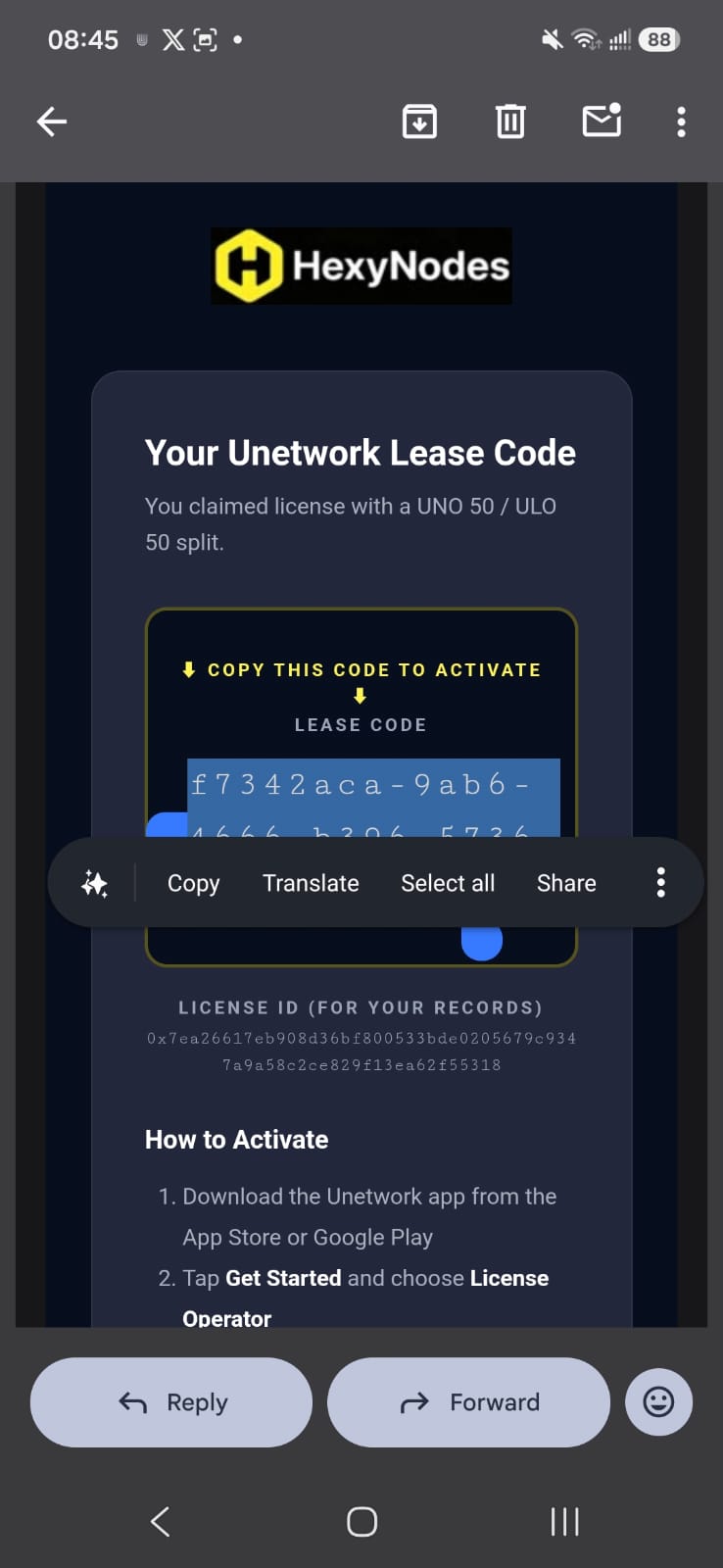
If you do not have a lease code yet, you can browse available codes on the HexyNodes Unity Node License page and copy one. Once you have it, come back here and follow the steps below.

Watch: Activating Your Unity Node License

Prefer to follow along with a video? The official Unity Nodes team has put together this walkthrough covering the full activation process:

https://www.youtube.com/watch?v=xv_qQBdJTDI
Official Unity Nodes activation walkthrough

The written steps below cover the same process with screenshots, so use whichever format works best for you.

What Is a Unity Node Lease Code?

A Unity Node lease code is a unique identifier, usually formatted as a UUID (a string of letters and numbers separated by dashes), that grants you access to a leased Unity License. When you enter this code in the Unity app, the license gets bound to your account and your device begins participating in the network.

Unity Licenses are NFTs. Each Unity Node comes with 200 of them. A Node Operator can either run those licenses themselves or lease them out to other people. When a license is leased, the operator provides the lease code to the person who will be running the node software. That person is the Unity License Operator, or ULO.

Once you activate your code and bind it to your email, no one else can claim that license. This is why keeping the code safe matters: if you ever need to re-link the license to a new device or account, you will need that code again.

What You Need Before You Start

Before you begin the activation process, make sure you have the following ready:

  • Your lease code. Copy it from hexynodes.com/unity-node-licenses or from wherever your operator provided it.
  • A smartphone running Android or iOS.
  • The Unity app installed, or a few minutes to download it.
  • Access to your email inbox so you can receive the one-time verification code.
  • A stable internet connection, either Wi-Fi or mobile data.

You do not need a crypto wallet, a Web3 account, or any prior experience with blockchain technology. The email sign-in path is designed for people who want a straightforward setup.

How to Activate a Unity Node Lease Code: Step by Step

Follow these six steps and your node will be live in under five minutes.

Step 1: Install the Unity App

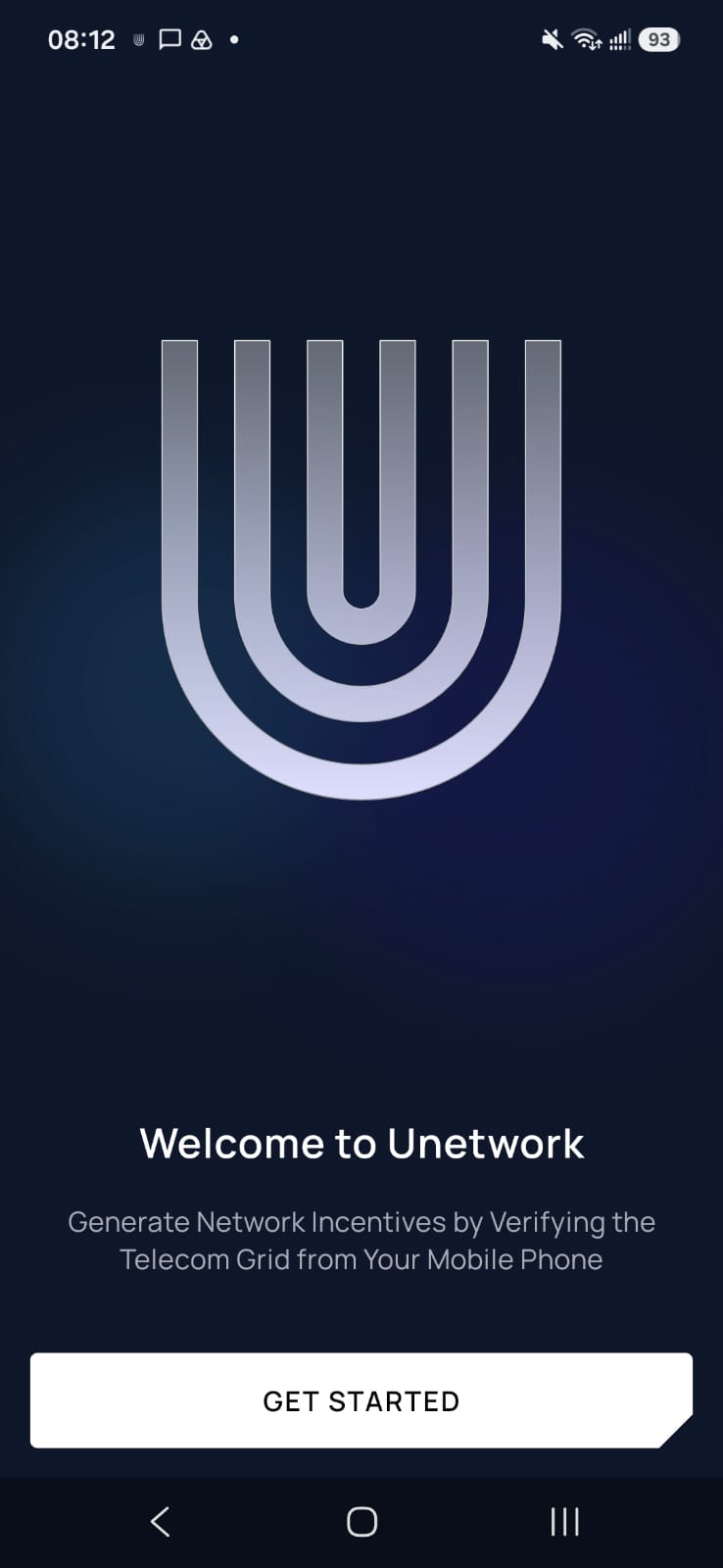
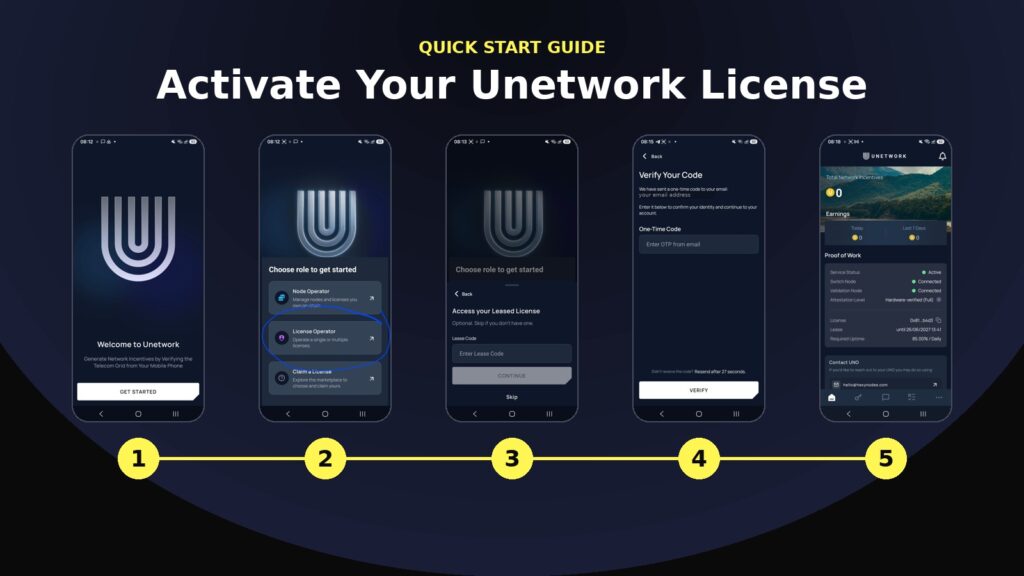
Download the Unity app from the Google Play Store or the Apple App Store. Search for “Unity Network App” or use the direct links on the HexyNodes license page. Once installed, open the app. You will see the welcome screen with the Unity logo and a Get Started button.

Unity app welcome screen showing Get Started button

Tap Get Started to proceed to the role selection screen.

Step 2: Choose License Operator

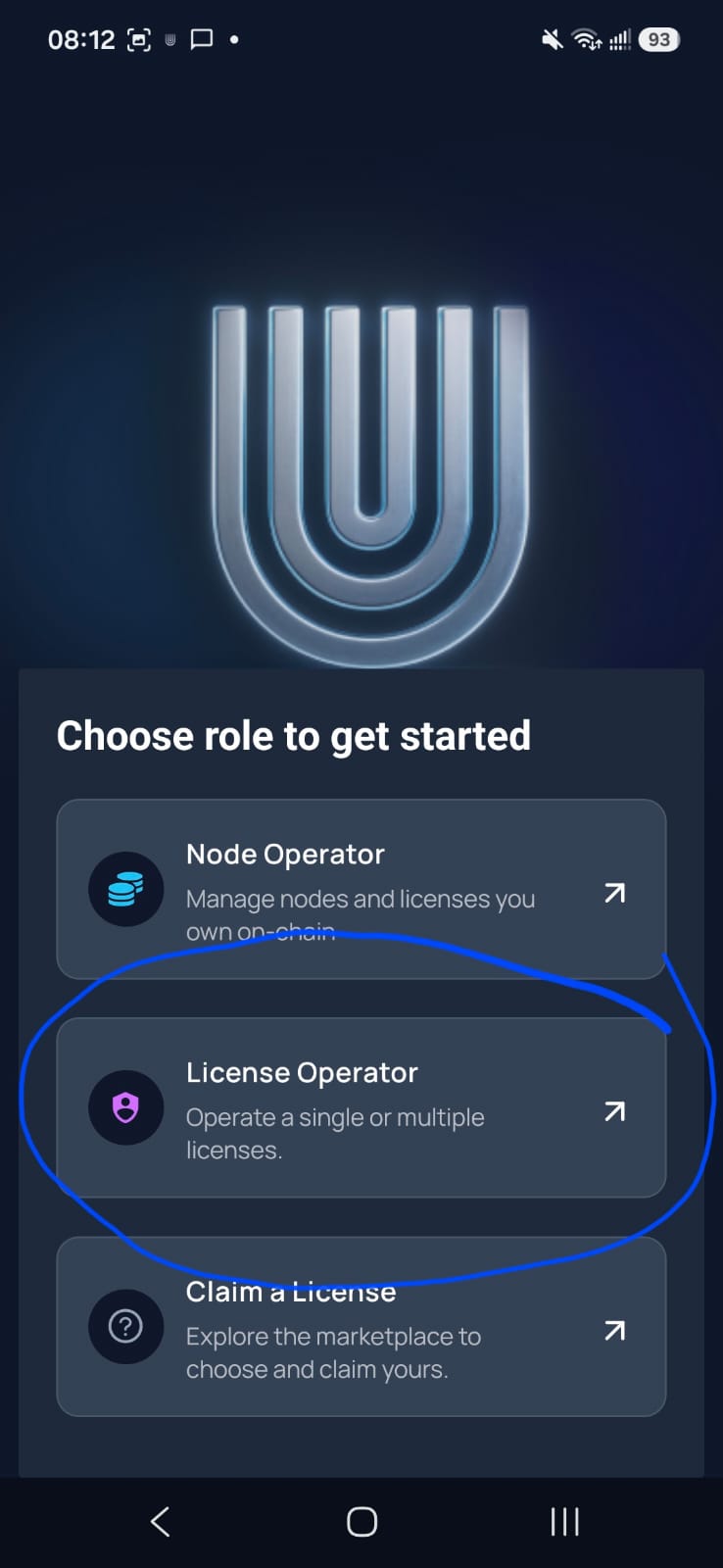
You will be asked to choose your role. Three options appear: Node Operator, License Operator, and Claim a License.

Unity app role selection showing License Operator option

Tap License Operator. This is the correct option for anyone who has a lease code from a Node Operator. Node Operator is for people who own Unity Node hardware and manage licenses on-chain. Since you have a lease code, License Operator is your path.

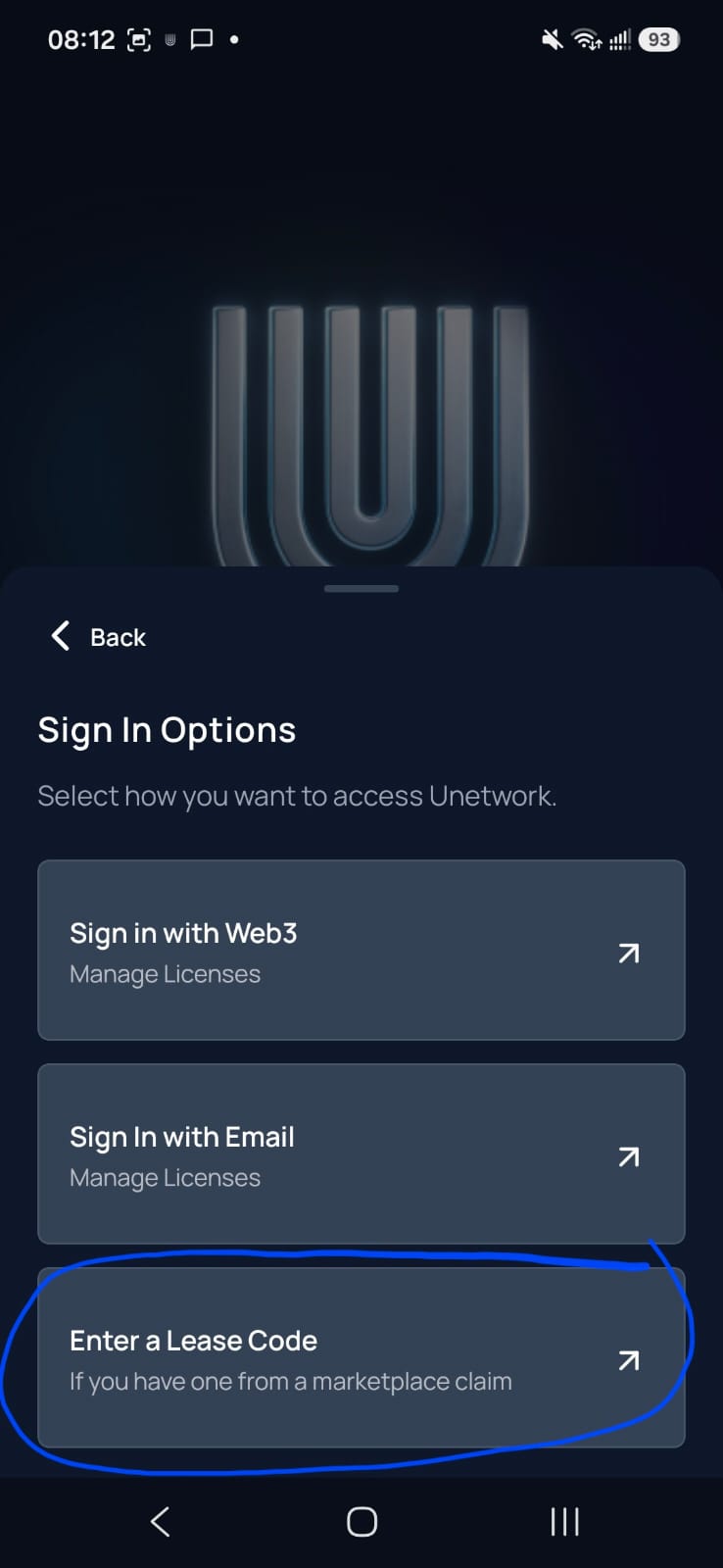
Step 3: Enter Your Lease Code

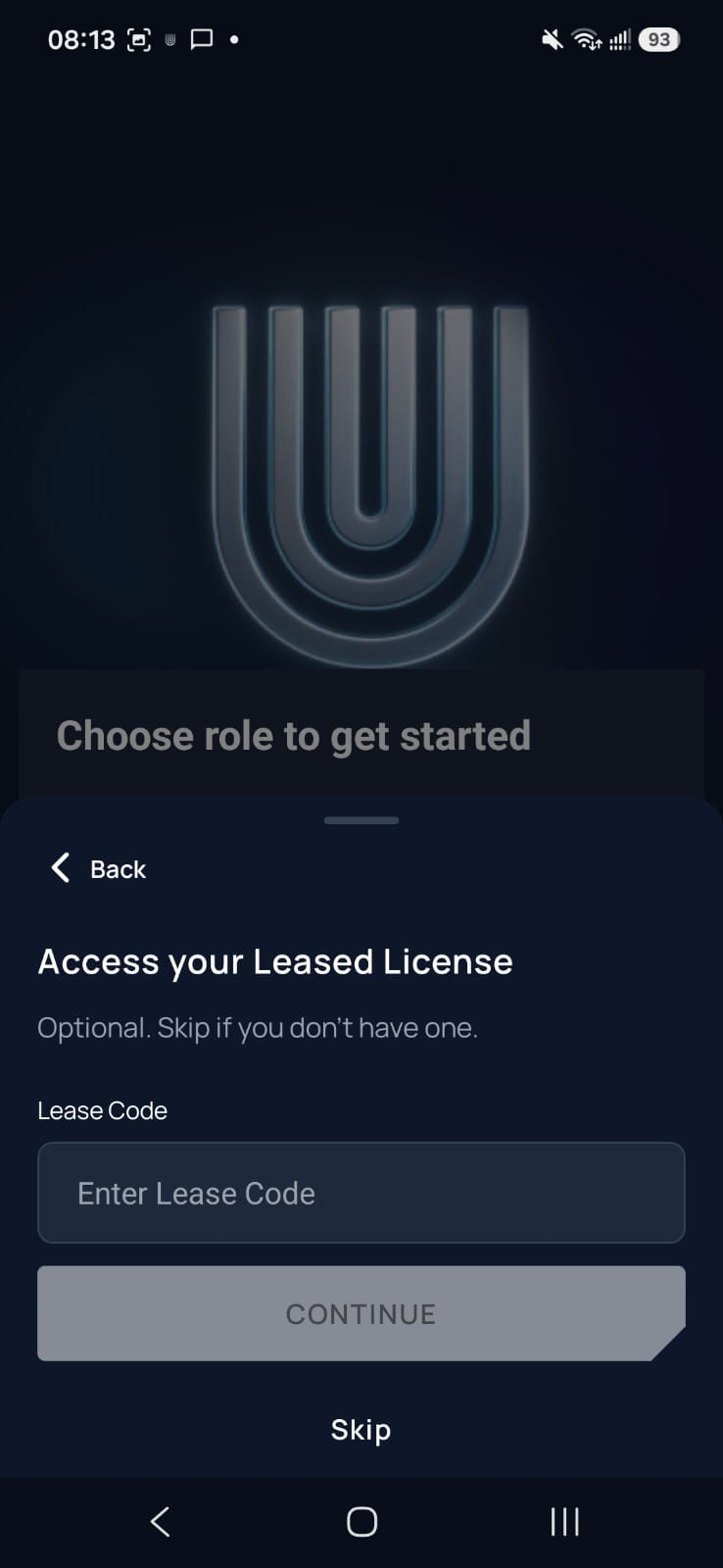
The app shows the Access Your Leased License screen with a single input field labelled Lease Code.

Unity app enter lease code screen

Paste your lease code exactly as provided. Do not add spaces or change any characters. The code is case-sensitive and 36 characters long including the dashes. Tap Continue. If the code is valid and unclaimed, you move to the sign-in step.

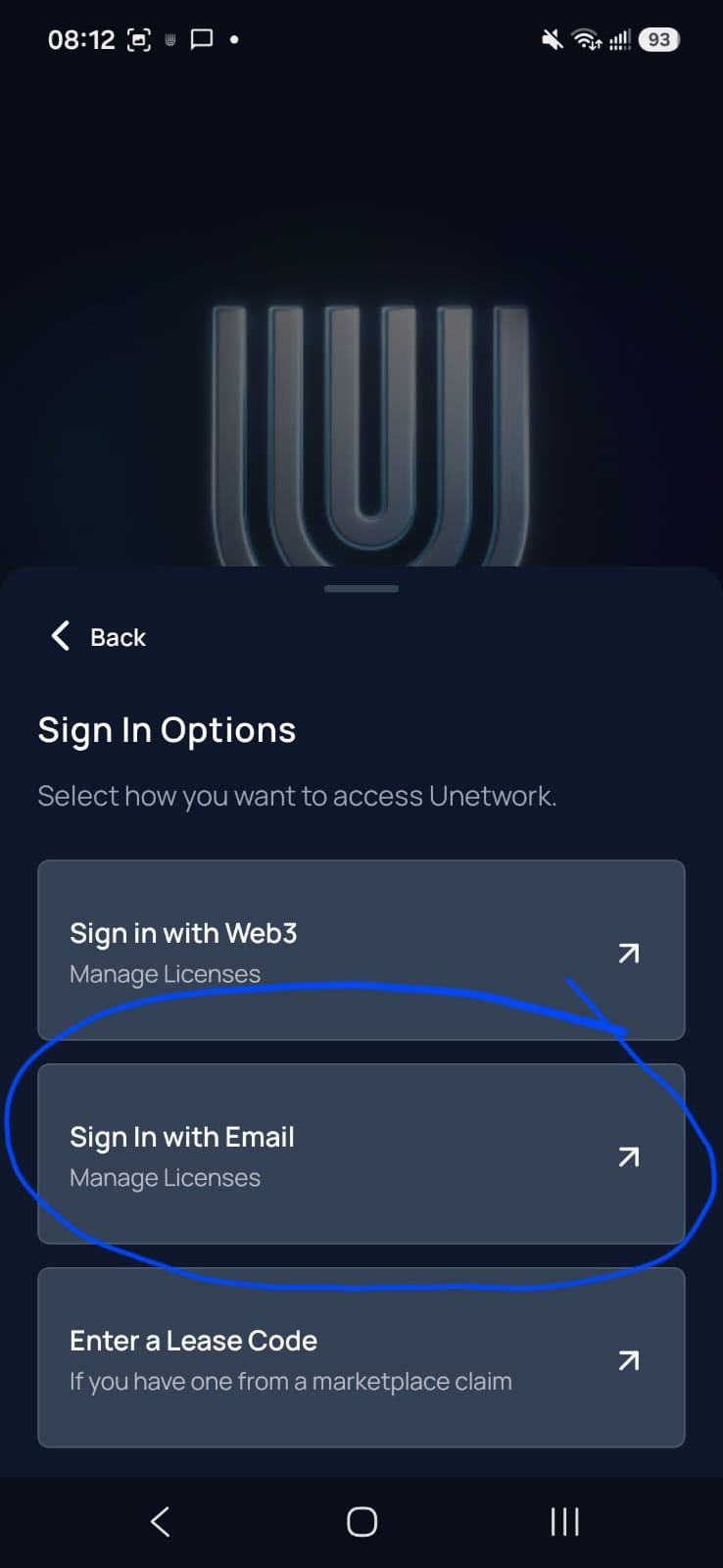
Step 4: Choose Sign In with Email

The app asks how you want to sign in: Sign in with Web3, or Sign In with Email.

Unity app sign in options showing email login

Unless you specifically want to connect a Web3 wallet, choose Sign In with Email. This lets you manage your license with just your email address and a one-time code. Simpler, faster, and works on any device.

Step 5: Enter Your Email Address

Type in the email address you want to use to manage this license. Make sure you have access to this inbox right now.

Unity app sign in with email screen

Tap Continue. The app sends a one-time password to your email within a few seconds.

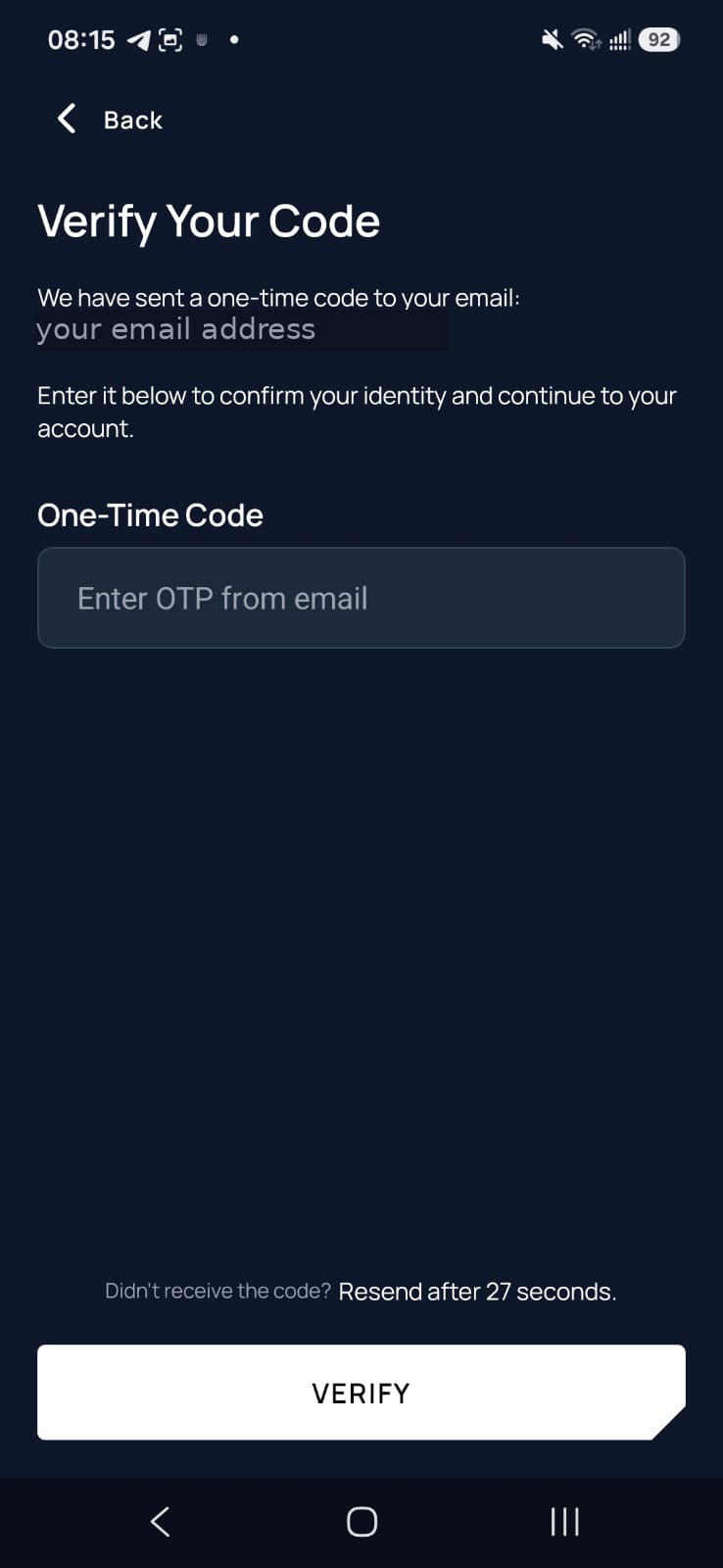
Step 6: Verify Your One-Time Code

Check your inbox for an email from Unity containing a short numeric code. Enter it in the One-Time Code field and tap Verify.

Unity app verify OTP code screen

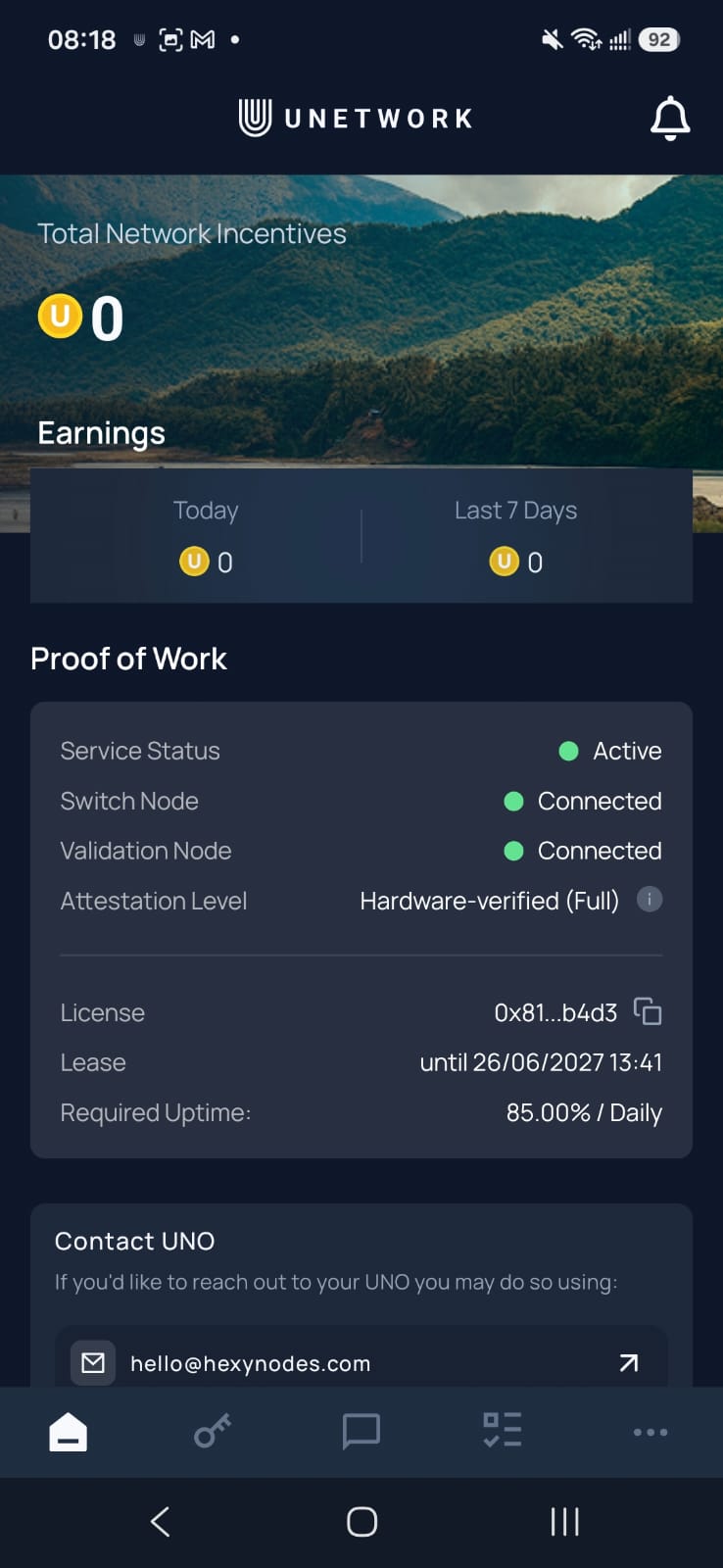
Once verified, your lease code is bound to your account. Your device is now a Unity License Operator node and your dashboard will show your license status and earnings.

Important: store your lease code somewhere safe right now, such as a notes app or password manager. You will need it again if you ever switch devices or need to re-link your license.

What Happens After You Activate?

Once your license is active, the Unity app begins running verification tasks in the background. Your device connects to the global telecom grid and runs controlled signal tests that help carriers identify areas of poor coverage, fraud, and network anomalies.

You do not need to keep the app open or interact with it. The main requirements for earning consistently are:

  • Keep your device on stable Wi-Fi as much as possible.
  • Keep the device plugged in overnight so tasks can complete without draining your battery.
  • Make sure background app refresh is enabled for the Unity app.
  • Keep the app updated when new versions are released.

The app uses approximately 7GB of data per month on average, but it strongly prioritises Wi-Fi over cellular data. Running the app does not affect your calls, texts, or mobile data at all. The app only collects anonymised network metrics and never accesses your contacts, messages, or personal data.

Understanding Your UNO and ULO Split

When you activate a leased license, your earnings are shared between you (the Unity License Operator, or ULO) and the Node Operator who provided the license (the UNO, or Unity Node Operator).

The split is agreed in advance and shown on each license card in the HexyNodes license directory. A 50/50 split means you and the operator each receive half the earnings from that license. A 40/60 split means the ULO receives 40 percent and the UNO receives 60 percent. The higher UNO share typically reflects a setup where the operator takes on more responsibility for hardware and maintenance.

As a practical example: if a license generates the equivalent of $96 in a given month on a 50/50 split, you receive $48 and the node operator receives $48. The split is enforced on-chain automatically. No trust required between the two parties.

How Much Can You Earn From a Unity Node License?

Earnings from Unity licenses vary depending on your geographic location, the reliability of your internet connection, and overall network activity. Based on community data, operators running licenses under typical conditions can expect in the range of $40 to $50 per month on a 50/50 split. Nodes in areas with less existing network coverage tend to complete more verification tasks and can earn more.

Rewards are tracked in real time in the Unity app dashboard as UnityPoints and are updated on a minute to minute basis. They are paid out in cryptocurrency.

How to Withdraw Your Unity Earnings

Withdrawing your earnings is straightforward and there is no minimum withdrawal amount, other than the standard blockchain network fees that apply to any on-chain transaction.

To withdraw from inside the Unity app:

  • Open the Unity app and go to your dashboard.
  • Tap on your rewards balance or the Withdraw option.
  • Choose your preferred cryptocurrency for payout.
  • Enter your wallet address and confirm the withdrawal.

Rewards are paid out in cryptocurrency. Supported payout options include USDC, USDT, ADA, ETH, BTC, and DOT. There is no bank transfer option. Since rewards accumulate in real time, you can withdraw as often or as rarely as you like. Many operators let earnings build for a month or two before withdrawing to reduce the relative impact of transaction fees.

Spend Your Rewards Directly with the Zebec Card

Unity Nodes has partnered with Zebec to make spending your crypto rewards as easy as using a regular debit card. Through the dedicated integration at unity.zebec.io, you can load your Unity earnings onto a Zebec Card and use it anywhere Mastercard is accepted, including Apple Pay and Google Pay, at over 60 million merchants worldwide.

Zebec supports over 150 tokens across 18 blockchains, so whatever format your Unity rewards come out in, there is a good chance you can load the card directly without a separate exchange step. The Zebec Carbon Card is reloadable with no transaction fees and a $10,000 daily spending limit. A Black Card tier with unlimited spend is also available, though currently undergoing upgrades with a Spring 2026 return.

This partnership is part of a broader collaboration between World Mobile and Zebec to launch ZebecNET, a combined connectivity and finance layer that lets people earn from the telecom network and spend those earnings in the real world without ever touching a traditional bank. If you want to go deeper on how that works, we are writing a full breakdown of the Unity Nodes and Zebec partnership separately.

Tips for Getting the Most Out of Your Unity License

  • Use Wi-Fi overnight. Most verification tasks run during lower-activity periods. Keeping your device on Wi-Fi and plugged in overnight means the app can complete tasks without interruption.
  • Disable battery optimisation for Unity. On some Android devices, aggressive power-saving settings kill background apps. Go into your battery settings and exclude the Unity app from any restrictions.
  • Keep notifications on. The app sometimes sends alerts about your node status or required actions.
  • Update regularly. New app versions often include performance improvements that affect how tasks are assigned and completed.
  • Store your lease code safely. If you switch phones or reinstall the app, you will need the original lease code to re-link your license.
  • Check your dashboard weekly. A quick check lets you catch any issues with task completion rates or node health before they affect your earnings.

Frequently Asked Questions

Can I run more than one Unity license on the same device?

Each device can only run one license at a time. If you want to operate multiple licenses, you need multiple devices. Some operators run licenses across a fleet of older Android phones or tablets for this reason.

What happens if I lose my lease code?

If you are signed into the Unity app and your license is active, you do not need the code on a daily basis. You only need it again if you switch devices or lose access to your account. If that happens and you no longer have the code, contact your Node Operator to request a new one. This is why storing it safely from the start matters so much.

Can I use the Unity app on iOS and Android?

Yes. The app is available on both platforms and the setup process is identical. The screenshots in this guide were taken on Android but the screens are the same on iOS.

Do I need to keep the app open all the time?

No. The app runs in the background. You can use your phone normally. On some Android devices you may need to disable battery optimisation for the Unity app to prevent the OS from closing it down.

What is the difference between a Unity Node and a Unity License?

A Unity Node is the infrastructure layer. Each node comes with 200 Unity Licenses and participates in the World Mobile network at a deeper level. A Unity License is the software-level participation permit. As a License Operator you run the license layer without owning the node itself, and earn a share of rewards split with the node operator.

Is the Unity app safe to install?

Yes. The app is on the official Google Play Store and Apple App Store. It only collects anonymised network metrics and never accesses personal data, contacts, messages, or photos.

What if the lease code I enter is already taken?

If a code has already been claimed, the app will show an error. Head back to the HexyNodes license directory and copy a different available code. All codes shown there are pulled in real time from our records and marked as available.

How long does it take to start earning after activation?

Your node becomes eligible to earn as soon as the license is bound and the app is running. You may see your first earnings within the first 24 to 48 hours of running the app continuously on a good Wi-Fi connection.

Can I withdraw in fiat currency or to a bank account?

Not directly. Rewards are paid out in cryptocurrency only. Supported tokens include USDC, USDT, ADA, ETH, BTC, and DOT. To convert to fiat you would withdraw to a crypto exchange account and sell from there.

Get Your Unity Node Lease Code

If you have not yet claimed a lease code, HexyNodes has a directory of available Unity Node licenses with both 50/50 and 40/60 UNO and ULO splits. All codes are pulled directly from our records and updated in real time. Codes are available on a first-come first-served basis.

Head to the Unity Node License page, pick a code that suits your split preference, copy it, and follow the six steps above to get your node live today.

Questions? Reach us at hello@hexynodes.com.

Leave a Comment

Your email address will not be published. Required fields are marked *